
If you’re new to sprite sheets, you usually hit the same wall fast.
You generate an awesome sticker sheet with AI, but it comes out as one big image. That looks great in a preview. However, it’s not “pack-ready.”
A real sticker pack needs separate files (usually transparent PNGs), clean edges, and an easy export you can actually use.
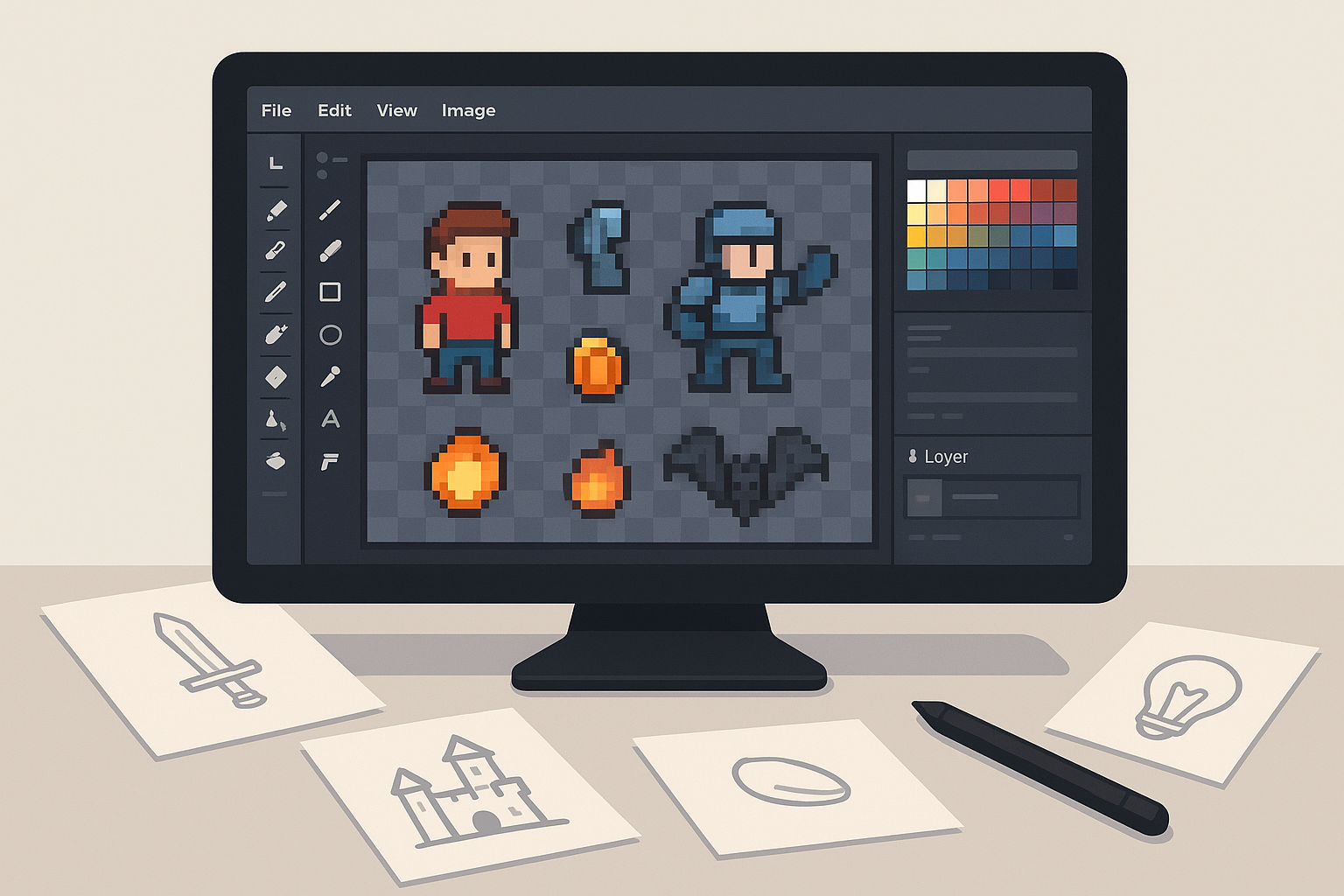
That’s exactly why we built the Skooledup Sprite Cutting Tool—a simple, browser-based sprite sheet tool for beginners that helps you upload a sheet, cut icons into tiles, clean them up, and export everything as a ZIP.
What is a sprite sheet (in plain English)?
A sprite sheet (also called an asset sheet or sticker sheet) is one image that contains many smaller images inside it—like icons, stickers, game sprites, or UI buttons.
Your goal is simple:
Turn that one big sheet into separate images you can use anywhere.
Why beginners struggle with sprite sheets
Most “traditional” workflows make beginners suffer:
- Big design programs that feel overwhelming
- Confusing export settings
- Cutting one image at a time
- Messy edges (halos, leftover pixels, background chunks)
So we built a tool that keeps the process visual and simple—right in the browser. No installs. No complicated setup.
Meet the Skooledup Sprite Sheet Tool (beginner-friendly on purpose)
Skooledup’s Sprite Cutting Software is built around a beginner workflow:
- Upload a sprite sheet
- Cut tiles using Box Select or Draw Select
- Clean edges using an Edge Eraser
- Export as a ZIP of transparent PNGs
It’s designed for stickers, icon packs, UI assets, and game art.
Quick Start: Cut your first sticker pack in 6 steps
1) Open the tool
Head to the Sprite Cutting Tool page on Skooledup (you’ll need to be logged in to use the Asset Cutter).
2) Upload your sheet
Click Choose image, then select your PNG/JPG/WEBP sheet.
3) Pick your cut method: Box Select or Draw Select
- Box Select: click + drag a rectangle over an icon
- Draw Select: scribble around the sticker shape for irregular art
4) Create tiles
Every cut becomes a tile card in the Tiles panel, with a live preview and an editable name.
5) Clean up edges (optional, but recommended)
Click a tile (or drag it into the editor), then use the eraser brush to remove stray pixels. If you erase too much, hit Remove edits to restore the original cut.
6) Export as a ZIP
Optionally set a Pack title, then click Save pack (ZIP). The tool exports each tile as a transparent PNG and bundles them into one ZIP download.
Box Select vs Draw Select (which should beginners use?)
Use Box Select when…
Your sheet is clean and grid-like, or your icons are already in neat rectangles (UI assets, tiles, simple icons).
Use Draw Select when…
Your stickers have weird outlines, loose spacing, or non-rectangular shapes. Draw Select lets you “roughly trace” around the icon and get a tighter result.
Most beginners end up using both. Start with Box Select for speed, then switch to Draw Select when a sticker needs more precision.
The edge eraser: how to get clean, pro-looking sticker tiles
Even good cuts can leave:
- halo edges
- extra background
- overlap from nearby stickers
That’s why the tool includes an Edit Tile Edges panel. Load a tile, erase the junk, and keep your PNG transparency clean. If you mess up, restore with Remove edits.
Beginner tips that make everything easier
Zoom where you’re working
The tool supports zooming around your mouse position, which makes tight cuts way easier.
Rename tiles as you go
The tile list supports naming, so your exported ZIP isn’t a mystery folder later.
Don’t obsess on the first cut
Cut fast first. Then use the edge eraser only on the tiles that need cleanup.
What about tokens?
On Skooledup, cutting and editing can be free, but exporting a ZIP can check/deduct tokens depending on your account setup. The flow is simple: you click Save pack (ZIP), the system checks your balance, then it creates the ZIP.
Who this tool is for
This sprite sheet tool for beginners is great for:
- indie game developers (sprites, UI, VFX)
- streamers/creators (badges, emotes, overlay packs)
- designers (icon packs)
- developers (web/app asset prep)
Ready to turn your AI sheet into a real pack?
If you can upload an image and drag your mouse, you can use this tool. Upload a sheet, cut a few tiles, clean the edges, and export your first ZIP—you’ll feel the speed difference immediately.