
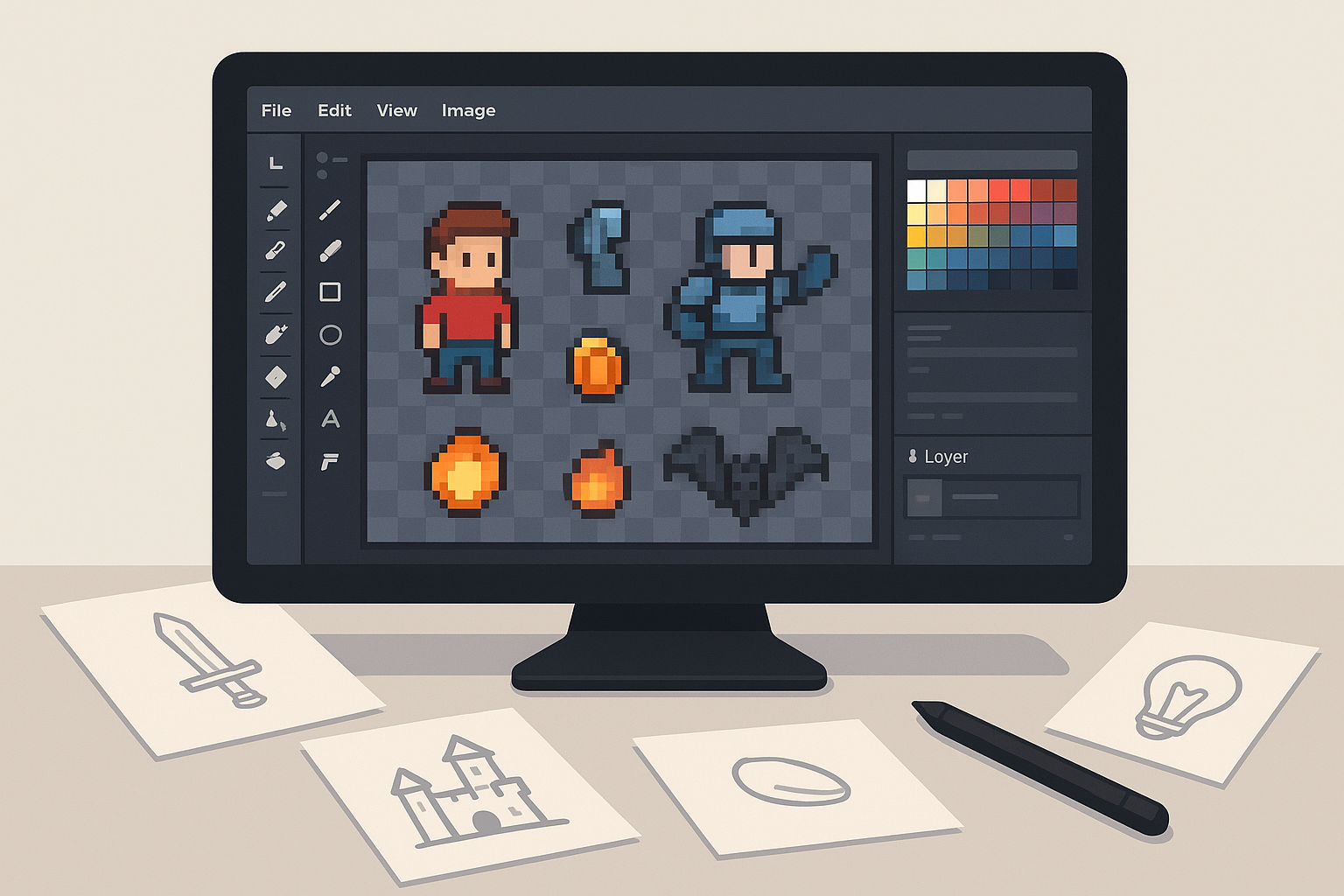
If you search “best sprite tool,” you’ll see a lot of sprite editors.
Those tools are great. They help you draw sprites.
But what happens after you already have a sprite sheet?
Now you need the part nobody talks about:
You need to separate that sheet into clean, usable files.
That’s where the Skooledup Sprite Cutting Tool becomes the best sprite tool for the job. It runs in your browser, lets you cut sprites with box select or draw select, cleans edges with an eraser editor, and exports everything as a ZIP of transparent PNG tiles.
Use it here: https://skooledup.com/sprite-cutting-tool/
What “best sprite tool” should mean in 2026
A modern sprite workflow is not just drawing pixels.
It’s also:
- Cutting sheets into individual sprites
- Removing edge junk and halos
- Exporting everything fast
- Keeping files organized for your project
So if your pain is “I have a sheet, but I need a pack,” then the best sprite tool is a sprite cutter, not a full art program.
Skooledup was built for that exact step.
What the Skooledup Sprite Cutting Tool does
Skooledup’s Sprite Cutting Software is a focused tool that helps you:
- Upload a sprite sheet (PNG, JPG, or WEBP)
- Select sprites using Box Select or Draw Select
- Turn each selection into a tile
- Edit tile edges with an eraser (alpha transparency cleanup)
- Export the full pack as a ZIP of transparent PNG tiles
It’s built for game art, stickers, and UI icons. It’s also built for speed.
Why Skooledup is the best sprite tool for cutting sheets
1) It’s browser-based
No installs, heavy software, or setup headaches.
You open the page, upload your sheet, and start cutting. That matters when you’re trying to move fast.
2) You get two cutting modes
Most cutters assume everything is a perfect grid.
Real sheets aren’t always perfect. AI sticker sheets rarely are.
That’s why Skooledup includes:
- Box Select (drag a rectangle over a sprite)
- Draw Select (scribble around a shape for irregular stickers)
So you can cut clean tiles whether your sheet is grid-based or messy.
3) You can clean edges like a pro
Cutting is step one.
Step two is cleanup.
Skooledup lets you load any tile into an editor and erase rough edges. This erasing targets transparency (alpha), so you can remove junk pixels without destroying the sprite. If you go too far, you can restore the tile back to the original cut.
4) ZIP export makes it “pack-ready”
Saving one PNG at a time is painful.
Skooledup exports each tile as a transparent PNG and bundles everything into one ZIP. That means your “sheet” becomes an actual asset pack in one click.
The beginner-friendly workflow (AI sticker sheet → sticker pack)
This is the simple flow most creators use:
Step 1: Generate your sticker sheet
Use AI or your favorite design process.
You end up with one full sheet image.
Step 2: Upload it to the Sprite Cutting Tool
Go to: https://skooledup.com/sprite-cutting-tool/
Upload the sheet.
Step 3: Cut sprites into tiles
Use Box Select for fast rectangle cuts.
Use Draw Select when the sticker shape is irregular.
Every cut becomes a tile below the canvas.
Step 4: Click a tile to clean edges
Load the tile into the editor.
Erase leftover background or weird edge fuzz.
Restore if needed.
Step 5: Export your pack as a ZIP
Click Save pack (ZIP).
Download your transparent PNG pack.
Drop it into your project.
Who this “best sprite tool” is for
Skooledup’s Sprite Cutting Tool is perfect if you:
- Create sticker packs for digital products
- Build UI icon sets for apps or websites
- Work with 2D game sprites and need clean exports
- Use AI to generate sheets and need real assets fast
- Want a simple tool that does one job extremely well
What you can do with your exported PNG pack
Once you have separate transparent PNG tiles, you can:
- Add them to Unity, Unreal, Godot, or any engine workflow
- Use them as stickers, badges, or overlays
- Ship them as a digital download (zip bundle)
- Build icon packs for clients
- Save them as a reusable brand asset set
This is where a sheet becomes a product.
Quick tips to get cleaner cuts
- Start with Box Select for speed, then switch to Draw Select for tricky stickers.
- Do a fast pass first. Cut everything into tiles before you obsess over cleanup.
- Only erase what needs it. Most tiles won’t need heavy edits.
- Name your pack. A pack title helps keep exports organized (especially if you export often).
FAQ
Is Skooledup good for beginners?
Yes. It’s built to be direct: upload → select → tiles → cleanup → ZIP export.
Do I need Photoshop or a sprite editor first?
No. If you already have the sheet image, you can cut and export right away.
Can it handle sticker-style art and irregular shapes?
Yes. That’s what Draw Select is for.
What do I get at the end?
A ZIP file containing transparent PNG tiles, ready to use as an asset pack.
Try the best sprite tool for turning sheets into packs
If your goal is to go from “one big sprite sheet” to “a clean, usable pack,” Skooledup is built for that moment.
Open the tool and cut your next pack in minutes:
https://skooledup.com/sprite-cutting-tool/