

Once you purchase a subscription or product that include the SKP AI Autopilot you can visit your account dashboard by clicking here to retrieve your license keys and downloads.
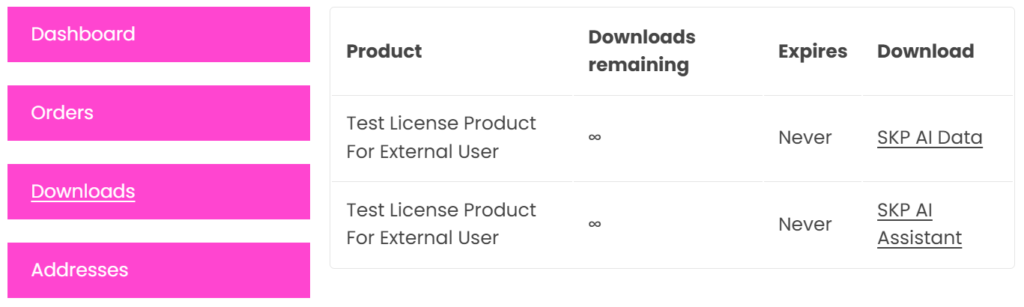
Your License Keys Are Found Here
Your Downloads Found Here
Once you have your downloaded files in zip format, visit your WordPress admin dashboard.
- Click the plugins tab.
- Click add new plugin.
- Click upload new plugin.
- Upload your zip files.
- Active the plugins.
Get your license found here under the license tab and enter them in their respective areas in your admin dashboard.
For the assistant you can click the SKP AI Assistant tab found in your admin dashboard at the very top left in the second position right underneath SKP AI Data.
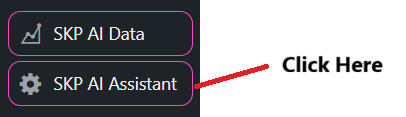
You will go to your admin settings for the assistant. There you will enter your license and your email and save.
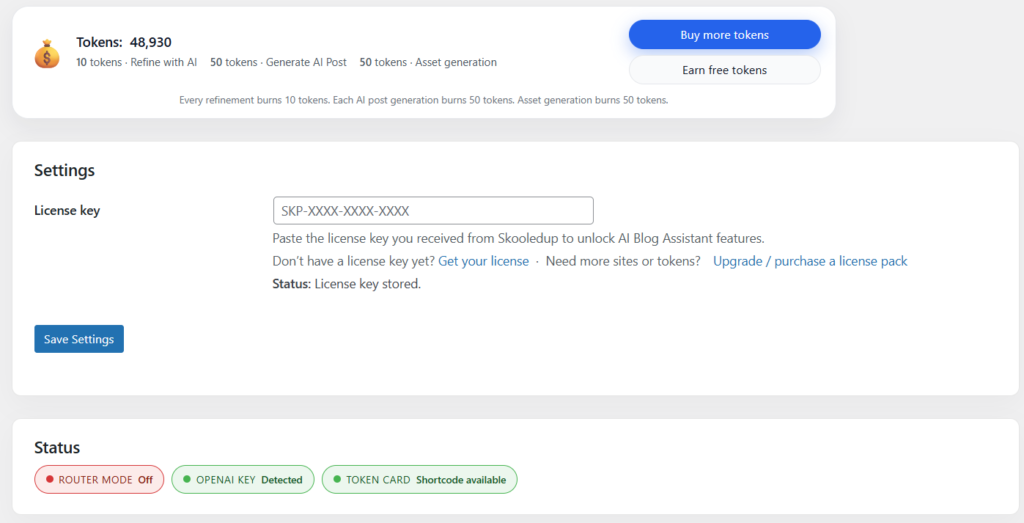
Save your settings. Your tokens will not show until you also insert your license key into the SKP AI Data plug in. Lets do that now. Click on the admin tab “SKP AI Data” found in the top left of the menu in the very first position.
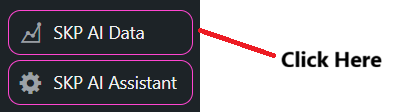
Once you click the “SKP AI Data” tab you visit the admin dashboard of the plugin. Enter your license and email information.
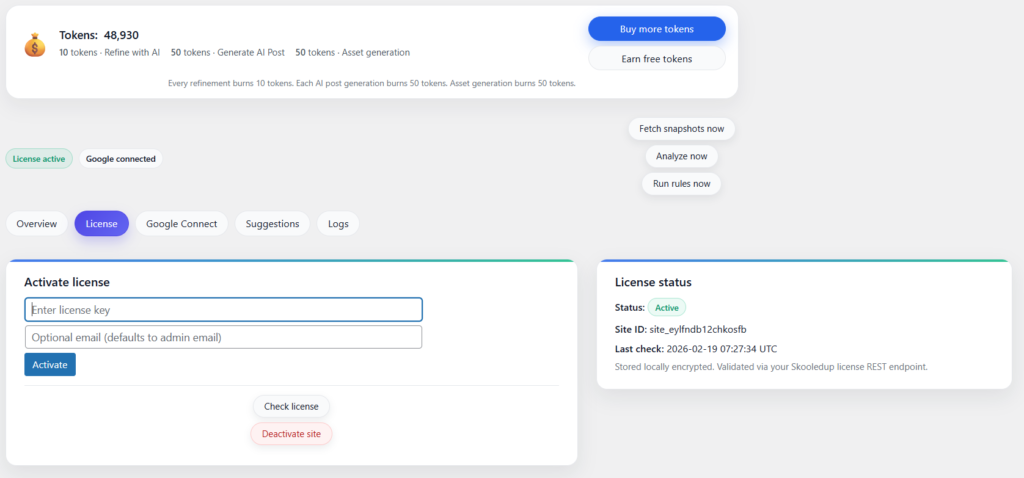
Connect your Google search console and Google analytics accounts in the google connect tab.
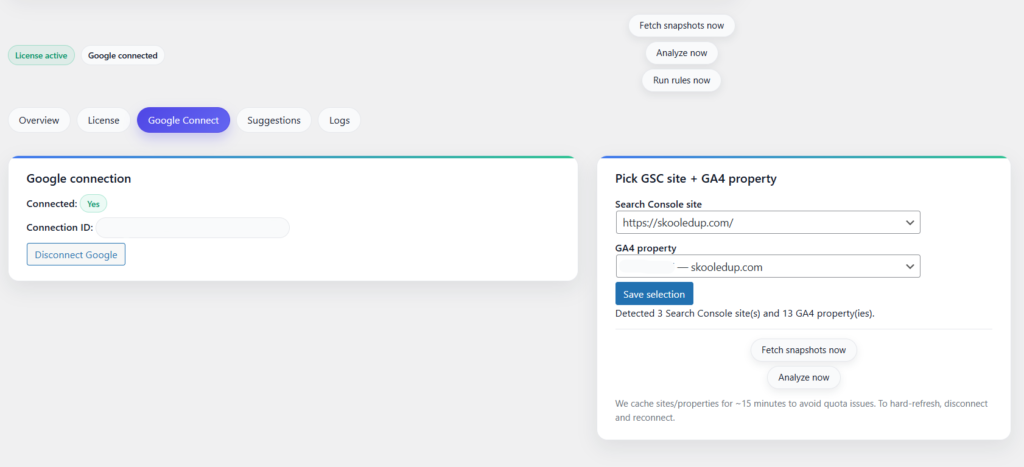
After you connect your Google search console and Google analytics accounts you are ready to go. It may take about a minute for your token card to update. Please enjoy and thank you for your purchase.