Every creator has a handful of prompts that always hit.
The voice note you turn into a perfect post.
The DM that opens real conversations.
The email structure that gets replies and sales.
The problem?
They live in random docs, screenshots, or sticky notes.
The Lunch Box Prompts Tool fixes that.
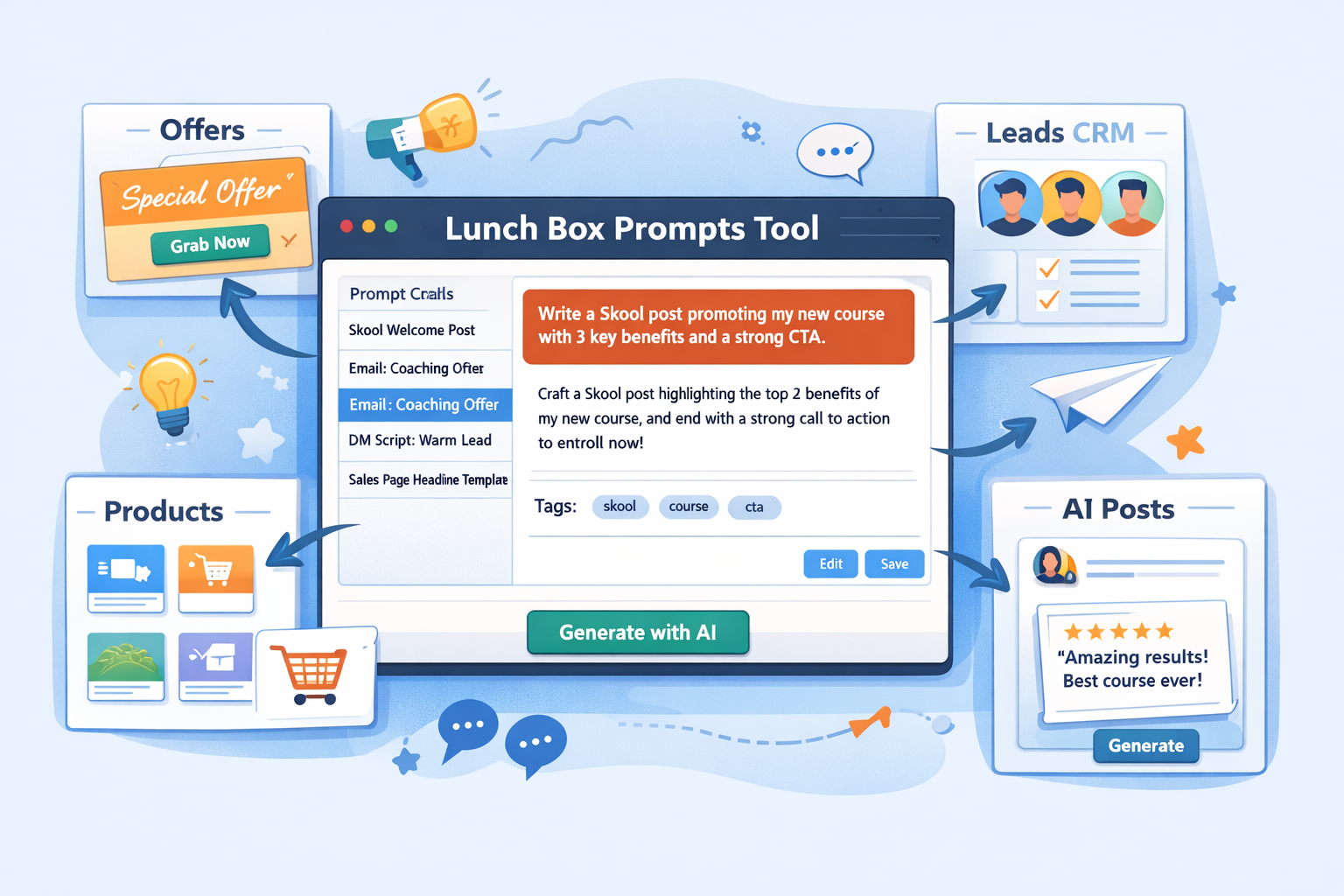
Inside Lunch Box for Skoolers, the Prompts Tool is your library of winning words. It’s where you save the exact prompts, angles, and frameworks that already work, so you can reuse them, adapt them, and plug them into AI or your own writing any time.
In this guide, you’ll learn:
- What the Lunch Box Prompts Tool is
- Who it’s for (not just Skool community owners)
- How prompts connect to your offers, products, proof, leads, and AI posts
- How to build a prompt library that grows with your business
- A simple workflow for using prompts in your daily content
What Is the Lunch Box Prompts Tool?
The Lunch Box Prompts Tool is a central place to save and organize all the prompts you use to:
- Write Skool posts
- Send DMs and follow-up messages
- Draft emails and newsletters
- Create sales pages and landing pages
- Script short-form video content
- Brainstorm ideas and hooks
A “prompt” can be:
- A direct AI prompt you paste into ChatGPT or another model
- A message template you reuse in DMs
- An email outline you tweak for different launches
- A story framework you use over and over
- A pattern for writing posts that always gets engagement
Each prompt gets its own card with:
- A title (so you can find it fast)
- The actual prompt text or template
- Tags for use case (Skool, email, DM, sales, content ideas, etc.)
- Connect offers
- Connect products
- Connect outside CTA’s
- Notes about where it works best
- Optional links to offers or products it supports
Instead of trying to remember, you just open your Lunch Box, search for a tag or title, and reuse what’s already working.
Who Is the Prompts Tool For?
The Lunch Box Prompts Tool is great for Skool creators, but it also fits anyone who writes content to sell.
It’s a strong fit if you are:
- A Skool community owner who posts daily and replies to members
- A coach or consultant who does DM outreach and follow-ups
- A course creator who launches programs a few times per year
- A service provider who sends proposals and pitch messages
- A social media manager repurposing content across platforms
- A copywriter or marketer who wants reusable frameworks
You might use Skool, email, Instagram, X, LinkedIn, YouTube, or a mix.
The Prompts Tool doesn’t force you into one platform. It simply gives you a single library of prompts that you can copy into any channel or pair with AI to move faster.
How the Prompts Tool Connects to the Rest of Your Lunch Box
The real power of the Lunch Box Prompts Tool comes from how it plugs into everything else:
- Products – what you sell
- Offers – how you present what you sell
- Leads (CRM) – who you’re talking to
- Proof – what results you’ve helped people get
- AI Posts – where you generate finished content
Let’s break down the connections.
1. Prompts + Offers: Messages with a Clear Destination
Your offers define how you invite people to buy.
With the Prompts Tool, you can:
- Save prompts tailored to each offer
- Tag prompts by offer name or type
- Keep a set of hooks, stories, and CTAs ready to go
Examples:
- “DM prompt – warm lead who saw the 12-Week Program offer”
- “Skool post prompt – soft pitch into the Founders Launch offer”
- “Email prompt – last day reminder for VIP Cohort”
Because prompts connect to offers, you don’t just write “content.” You write content that points somewhere specific.
2. Prompts + Products: Consistent Language Across All Channels
Your products live in the Products Tool.
Your prompts can reference those products directly.
That gives you:
- Consistent product names across posts, emails, and DMs
- Clear descriptions of what’s included and who it’s for
- Reusable scripts that always talk about the product the same way
For example:
- A prompt that says: “Write a Skool post that introduces my ‘Content Sprint for Busy Creators’ product to people who… ”
- A DM script that references your specific coaching package and the outcome it delivers
- An AI prompt that asks: “Turn this proof into a story that leads into my as the next step.”
When products change, you can update a prompt once instead of rewriting your messaging from scratch.
3. Prompts + AI Post Generator: One-Click, On-Brand Content
The AI Posts tab is designed to work hand-in-hand with the Prompts Tool.
Here’s how:
- You store your best prompts inside the Prompts Tool
- In the AI Posts tab, you pick one of those prompts
- You attach products, offers, proof, and audience details
- The AI generates content that’s consistent and on-message
Instead of typing prompts from memory every time, you:
- Choose from your saved prompt library
- Swap details like offer, product, or proof
- Generate posts, emails, or DMs in a few clicks
The more prompts you save, the faster this process becomes.
4. Prompts + Leads (CRM): Targeted Follow-Up at Scale
Your Leads / CRM tab shows the humans behind your business.
When you combine that with the Prompts Tool, you can:
- Save DM prompt templates for different lead stages
- Create prompts for “first contact,” “value bump,” and “direct offer”
- Build variations for cold leads vs warm leads vs hot leads
Examples of prompt categories:
- “First DM for people who clicked but didn’t buy”
- “Follow-up message three days after a strategy call”
- “Reactivation prompt for past buyers”
Because prompts are tagged and organized, you can:
- Open your CRM
- Look at a lead’s stage
- Grab the matching prompt pattern
- Paste and personalize in seconds
This keeps your follow-up consistent and scalable without sounding robotic.
5. Prompts + Proof: Stories That Sell The Right Thing
The Proof tab stores testimonials, screenshots, and case studies.
Key idea: proof by itself is powerful, but proof plus a solid prompt is what turns it into content that sells.
With the Prompts Tool, you can:
- Save prompts like “Turn this testimonial into a Skool post that leads into [offer].”
- Create structures like “Problem → Story → Proof → CTA to .”
- Build prompts that tell different kinds of stories:
- Origin story
- Client win
- Behind-the-scenes
- Before/after
Then, when you sit down to post or use the AI Posts tool, you can:
- Choose a piece of proof
- Pick a matching prompt
- Attach the product or offer
- Turn it into a polished, persuasive piece of content
Step-by-Step: Setting Up Your First Prompts
Here’s an easy way to get real value from the Lunch Box Prompts Tool in one session.
Step 1: Collect the Prompts You Already Use
Start with what’s already working.
Look for:
- Skool posts that got comments and saves
- DMs that led to sales calls or purchases
- Emails that got strong replies or click-throughs
- Notes or scripts you use when talking to leads
Copy these into a doc for now. You’ll turn them into prompts next.
Step 2: Create Your First Prompt Cards
Inside the Lunch Box Prompts Tool, click Add Prompt and:
- Give it a clear title, like:
- “Skool intro post – new members”
- “DM – warm lead after call”
- “Email – cart close reminder”
- Paste the actual prompt or message template
- Add tags, for example:
skool_post,email,dmlaunch,evergreen,follow_upproduct_name,offer_name
- Add a quick note about when to use it:
- “Use this after someone attends the live call.”
- “Good for people who said they’re interested but not ready yet.”
Save it. Repeat for 5–10 key prompts.
Step 3: Link Prompts to Products and Offers (Optional but Powerful)
For each prompt, think: What am I ultimately leading people toward?
- If it’s a Skool post that soft-pitches your program, link it to that offer
- If it’s a DM that sends someone to a strategy call, connect it to that product
- If it’s an email that promotes a specific launch, tie it to that campaign
This makes it easier later when you filter prompts by what you are selling.
Step 4: Use Prompts Inside the AI Posts Tool
In the AI Posts tab, you can:
- Choose one of your saved prompts from the Prompts Tool
- Select the offer and product you want to highlight
- Pull in proof if relevant
- Generate Skool posts, DMs, or email drafts in a few clicks
You are no longer staring at a blank page. You’re starting with a proven structure, boosted by AI, wrapped around the offers and products that live in your Lunch Box.
Step 5: Refine and Grow Your Library Over Time
Every time you notice:
- “That post really landed”
- “That DM opened a great conversation”
- “That email brought in more replies or sales than usual”
Turn it into a saved prompt.
Over weeks and months, you build a personal playbook of what works for your audience—ready to be used, reused, and improved.
Best Practices for Using the Prompts Tool
To get the most out of the Lunch Box Prompts Tool, keep these habits:
- Name prompts clearly
Make it obvious what the prompt is for and when to use it. - Tag generously
Use tags for channel, funnel stage, product, offer, and tone if needed. - Save only what works
Don’t hoard every idea. Focus on prompts that lead to real engagement or sales. - Iterate, don’t overwrite
If you improve a prompt, save the new version with a version note instead of deleting the old one. - Connect prompts to offers and products
So you’re always writing content that leads somewhere specific.
Why the Prompts Tool Matters Long-Term
Most creators underestimate how much time and energy they spend thinking, “What should I say?”
The Lunch Box Prompts Tool turns that from a daily struggle into a system:
- Your best prompts become assets, not accidents
- Your voice stays consistent, even when you use AI
- You have ready-made frameworks for posts, DMs, and emails
- Your content ties directly into products, offers, leads, and proof
Whether you’re running a Skool community, coaching clients, selling digital products, or growing any kind of online business, the Prompts Tool helps you talk about what you do clearly, consistently, and at scale.
Start by saving 5–10 prompts that already work. Connect them to your existing offers and products. Then use them in the AI Posts tab to generate your next Skool post, DM, or email.
Once you feel how fast that flow is, you’ll never want to go back to blank-page mode again.