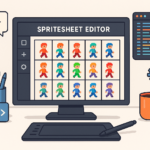

Sprite Cutting Software For Content Creators
If you work with game art, stickers, or UI icons, you already know the pain of cutting sprites by hand. Zooming in and out, trying not to leave a fringe, exporting one PNG at a time… it adds up fast.
That’s exactly why we built our browser-based Sprite Cutting Software – a simple web tool that lets you upload a sprite sheet, cut clean tiles with box or freehand selection, erase rough edges, and export everything as a ZIP of transparent PNGs.
You can try it right now here: Sprite Cutting Software.
What Is Sprite Cutting Software?
Sprite cutting software is any tool that helps you:
- Load a sprite sheet or asset sheet
- Select individual sprites or icons
- Cut them into separate images
- Export those images as individual files, usually PNGs with transparency
Traditionally, you use a heavy graphics program or a developer tool to do this. However, those options can be:
- Slow to set up
- Overkill for quick edits
- Confusing if you’re not a full-time designer
Our Sprite Cutting Software runs directly in your browser. There is no installation, no complicated configuration, and no huge user manual to read. You visit the page, upload a sheet, and start cutting.
All images made with AI on SkooledUp.com Register for free here!


Why Use a Browser-Based Sprite Cutter?
A browser-based sprite cutter has a few big advantages:
- Instant access – Open a single page and start working.
- No installs – Works on any modern browser, on Windows, macOS, or Linux.
- Consistent workflow – Same UI every time, no per-project setup.
- Perfect for teams – Everyone uses the same tool and same process.
Because everything happens on a canvas inside the browser, you can see your sheet, draw selections, and erase edges visually. The tool handles all the technical work of cropping and exporting transparent PNG tiles.
If you want a fast, focused sprite cutting software solution without bloat, this approach makes your life much easier.
Key Features of the Skooledup Sprite Cutting Tool
Here’s what you can do with the Sprite Cutting Software on Skooledup:
1. Upload Any Sprite Sheet
- Upload PNG, JPG, or WEBP sheets.
- The sheet immediately appears on a checkered background for clear transparency preview.
- The canvas auto-sizes to your image so you can work at full resolution.
2. Box Select or Freehand Draw
You can cut tiles in two ways:
- Box Select Mode
- Click and drag a rectangle over a sprite.
- When you release the mouse, that region becomes a tile.
- Great for grid-based sprites, UI elements, and neatly aligned assets.
- Draw Select Mode
- Scribble loosely around an icon or character.
- The tool creates a tight bounding box and masks everything outside your drawn shape.
- Perfect for irregular shapes, sticker-style art, and non-grid sprites.
Because of this, you can use the same sprite cutting software for pixel art, vector-style exports, or even complex illustrations.
3. Zoom In and Out Around Mouse Position
Detail work is much easier when zoom follows your cursor. In this tool, you can:
- Use the mouse wheel to zoom in or out.
- Zoom is centered around your mouse position, not just the top-left corner.
- This makes fine selections and tight cuts much more accurate.
You stay focused on the area you care about, instead of constantly panning.
4. Tile List With Live Previews and Names
Every selection you make:
- Appears in a Tiles panel as a card
- Includes a live preview on a checkerboard background
- Has an editable name (e.g. “Idle_01”, “Button_Play”, “Gold_Coin”)
You can rename tiles as you go, so when you export the ZIP you already know what’s what.
5. Edge Eraser for Cleanup
Sometimes a tile still has:
- Halo edges
- Extra background
- Overlapping pieces from nearby sprites
That’s why the tool includes an Edit Tile Edges panel:
- Drag or click a tile to load it into an editor canvas.
- Use a soft eraser brush to remove stray pixels and unwanted edges.
- If you remove too much, you can restore the tile back to its original cut with Remove edits.
Because the eraser uses transparency, your output stays as clean, transparent PNG sprites.
6. Export as a ZIP of Transparent PNG Tiles
When you are happy with your tiles:
- Click Save pack (ZIP).
- The tool exports each tile as a transparent PNG.
- It bundles everything into one ZIP file and triggers a download.
You end up with a ready-to-use asset pack that can be dropped directly into:
- Unity
- Unreal Engine
- Godot
- Web games
- Apps, overlays, or any project that uses PNG sprites
Images below were created using the AI banner creator


How the Token System Fits In
On Skooledup, the sprite cutting software connects to a token system. This lets us:
- Keep the core editing experience smooth and affordable
- Prevent abuse from automated scraping or massive bulk jobs
- Reward paid users with predictable, fair usage
The flow is simple:
- Drawing, cutting, and editing tiles is free.
- When you click Save pack (ZIP), the system checks your token balance.
- If you have enough tokens, it creates the ZIP and automatically updates your balance.
In the token card at the top, you can see:
- Your current token balance
- How many tokens a ZIP export costs
- A button to buy more tokens
We’ll also be adding an “Earn free tokens” button so users can unlock extra tokens through future tasks and offers.
Step-by-Step: Using the Sprite Cutting Tool
Here’s a quick walkthrough so you can see how the workflow feels in practice.
Step 1: Open the Tool
Go to: https://skooledup.com/sprite-cutting-tool/
You’ll see the Asset Cutter interface with the main canvas and tiles panel.
Step 2: Upload Your Sprite Sheet
- Click Choose image.
- Select your sprite sheet PNG, JPG, or WEBP.
- The sheet loads into the main canvas and also gets added as a “Master” tile for reference.
Step 3: Choose Your Selection Mode
- Use Box select for grid-style or rectangular assets.
- Use Draw select when you want to trace around irregular shapes.
You can switch modes at any time.
Step 4: Cut Tiles
- In Box select, click and drag a rectangle around your sprite. When you release, it becomes a tile.
- In Draw select, scribble around the sprite. When you release, the tool creates a mask and cuts just the drawn shape.
Each cut appears as a new tile card with a live preview and a renameable label.
Step 5: Clean Up Edges (Optional)
- Click a tile card, or drag it onto the editor canvas.
- Use the eraser to remove unwanted pixels or stray edges.
- If you make a mistake, click Remove edits to restore the original cut.
Step 6: Export Your Pack
- Make sure you’re happy with your tiles and names.
- Optionally, set a Pack title (this becomes part of the ZIP name).
- Click Save pack (ZIP).
- The tool deducts tokens (if required) and creates your ZIP.
- Your browser downloads the sprite pack automatically.
You now have a neatly organized folder of transparent PNG sprites.
Logos created using the AI Logo creator at SkooledUp.com Register for free here!


Who Is This Sprite Cutting Software For?
This tool is designed for anyone who works with visual assets, including:
- Indie game developers – Cut character animations, VFX, UI elements, and tilesets quickly.
- Streamers and content creators – Turn overlay sheets into separate badges, emotes, and alerts.
- Designers – Export icon sets from a single sheet, then drop them into your design system.
- Developers – Prepare assets for front-end frameworks and web apps without opening a full design suite.
Because the workflow is visual, you don’t need to be a professional artist to get good results.
SEO-Friendly Benefits for Your Workflow
Using a streamlined sprite cutting software process also supports better production quality:
- Consistent naming – Helps your team stay organized and keeps your repositories clean.
- Clean transparency – No grey edges or random pixels in exported sprites.
- Fast iteration – Quickly cut new assets for prototypes, A/B tests, or seasonal updates.
That means you can ship better-looking games, sites, and tools faster, while keeping your production pipeline lean.
Try the Sprite Cutting Tool Now
If you’re tired of manually cropping sprites and fighting with big design tools for a simple task, this browser-based Sprite Cutting Software is made for you.
You can use it right now here:
👉 Sprite Cutting Software – Skooledup Sprite Cutting Tool
Upload a sheet, cut a few tiles, erase some edges, and export your first ZIP. Once you feel how fast the workflow is, it’ll be hard to go back to anything else.