
In the world of game design and digital art, sprite cutting software plays a crucial role in creating smooth animations and efficient game assets. Whether you are a beginner or an experienced developer, knowing how to cut sprites properly can save you time and improve your project’s quality. In this article, we will explore the best practices and techniques on how to cut sprites using sprite cutting software effectively.
What Is Sprite Cutting Software?
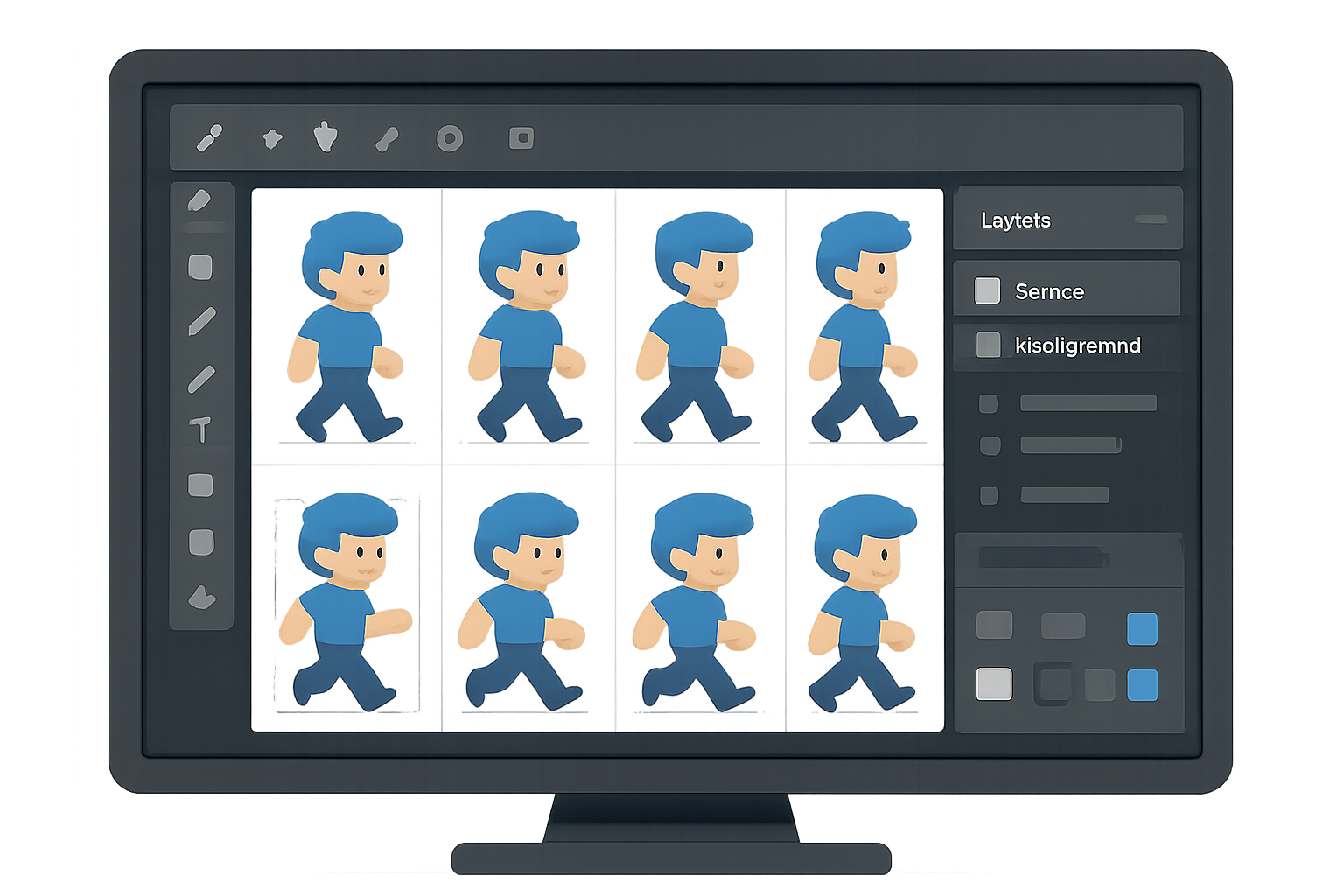
First, let’s clarify what sprite cutting software is. Essentially, it is a tool designed to help you extract individual images or frames from a larger sprite sheet. Sprite sheets are collections of multiple sprites combined into a single image file. Cutting sprites allows you to isolate each frame for animation or game use.
Moreover, sprite cutting software often offers features like automatic slicing, batch processing, and export options that simplify the workflow for developers and artists alike.
Why Use Sprite Cutting Software?
Using specialized software for cutting sprites offers several benefits:
- Efficiency: It automates the process, reducing manual work.
- Accuracy: Ensures precise cuts without losing quality.
- Consistency: Maintains uniform sprite sizes and alignment.
- Compatibility: Exports sprites in formats suitable for various game engines.
Because of these advantages, sprite cutting software is a valuable asset for game developers and digital artists.
Step-by-Step Guide: How to Cut Sprites Using Sprite Cutting Software
Now, let’s dive into the practical steps. For example, many popular sprite cutting tools share similar workflows. Follow these general steps to cut your sprites efficiently.
1. Choose the Right Sprite Cutting Software
First, select a tool that fits your needs. Some popular options include TexturePacker, ShoeBox, and free tools like Piskel or even Photoshop with slicing features. Consider software that supports your preferred export formats and offers user-friendly interfaces.
2. Import Your Sprite Sheet
Next, open your sprite sheet in the software. This is usually done by clicking an “Import” or “Open” button and selecting your image file. Make sure your sprite sheet is of high resolution to maintain quality after cutting.
3. Define the Cutting Grid or Use Automatic Slicing
Then, you can either manually set the grid size based on your sprite dimensions or use the software’s automatic slicing feature. For example, if each sprite is 64×64 pixels, set the grid accordingly. Automatic slicing can detect sprite boundaries and save time.
4. Preview and Adjust the Cuts
At this stage, review the slices to ensure they align perfectly with each sprite. If necessary, adjust the grid or slice boundaries manually to avoid cutting into sprites or leaving unwanted space.
5. Export the Sprites
Finally, export your sprites. Most software allows you to export individual sprite files or an optimized sprite sheet compatible with your game engine. Choose formats like PNG for transparency support.
Tips for Effective Sprite Cutting
To make this easier, here are some additional tips:
- Maintain Consistent Sprite Sizes: Uniform sprite dimensions simplify animation and alignment.
- Use Transparent Backgrounds: This helps when layering sprites in your game.
- Organize Your Files: Name your sprites clearly for easy identification.
- Backup Originals: Always keep a copy of your original sprite sheet before cutting.
Common Challenges and How to Overcome Them
Sometimes, cutting sprites may not go smoothly. For example, sprites with uneven spacing or overlapping frames can cause slicing errors. In such cases, manually adjusting the grid or using image editing software to clean the sprite sheet before cutting can help.
In addition, if your software lacks certain features, consider combining tools. For instance, prepare your sprite sheet in Photoshop and then use a dedicated sprite cutter for slicing and exporting.
Conclusion
In summary, learning how to cut sprites using sprite cutting software is essential for efficient game development and digital art creation. By choosing the right tool and following the step-by-step process, you can improve your workflow and produce high-quality sprites quickly.
For more detailed guides and software recommendations, visit AI Posts, AI SEO & AI Analytics By SKP | Skooledup.com. Start cutting your sprites today and take your projects to the next level!
Suggested image ideas: Screenshots of sprite sheets before and after cutting, examples of grid setup in sprite cutting software, and exported individual sprites ready for animation.