
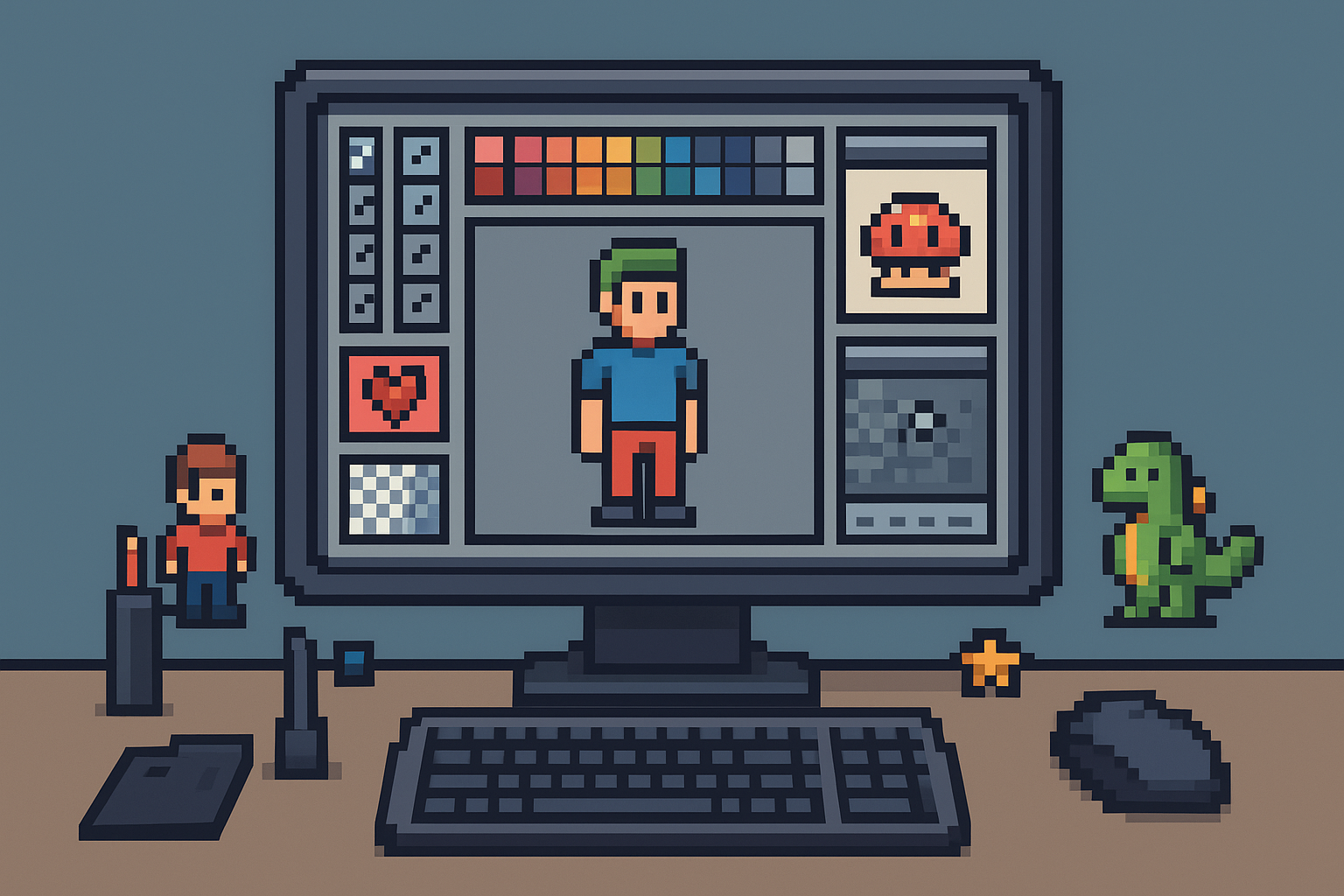
Creating pixel art and game characters has become an essential skill for many game developers and digital artists. Sprite making software offers an accessible way to design and animate these tiny graphics, which are crucial in 2D games and animations. Whether you’re a beginner or looking to improve your skills, this guide will walk you through the process of using sprite making software effectively.
What Is Sprite Making Software?
Sprite making software is a specialized tool designed to help artists create pixel-based images known as sprites. These images are typically small, grid-based graphics used in video games and digital animations. The software provides features such as layering, animation frames, color palettes, and pixel-level editing, enabling precise and creative control over your designs.
Choosing the Right Sprite Making Software
Before diving into the creation process, it’s important to select software that fits your needs. Popular options include:
- Aseprite: Known for its user-friendly interface and powerful animation tools.
- Piskel: A free, web-based tool ideal for beginners.
- GraphicsGale: Offers robust features, especially for Windows users.
- Pixelorama: An open-source option with versatile capabilities.
Each program has unique strengths, so consider factors like budget, ease of use, and specific features before deciding.

Step-by-Step Guide to Making Sprites
1. Set Up Your Canvas
Start by opening your chosen sprite making software and setting the canvas size. Sprites are usually small, commonly ranging from 16×16 to 64×64 pixels. Smaller sizes are great for retro-style games, while larger canvases allow more detail.
2. Choose Your Color Palette
Select a limited color palette to maintain consistency and style. Many sprite artists use predefined palettes or create custom ones. Limiting colors helps keep your sprite visually clear and stylistically coherent.
3. Sketch Your Sprite
Use the pencil or brush tool to outline your sprite. At this stage, focus on the overall shape and proportions. Pixel art requires careful placement of each pixel, so zoom in to work with precision.
4. Add Details and Shading
Once the basic shape is complete, add details such as facial features, clothing, or equipment. Use shading techniques like dithering or selective color gradients to give your sprite depth and dimension.
5. Create Animation Frames (Optional)
If your sprite needs to be animated, create multiple frames showing different poses or movements. Most sprite making software provides onion skinning features to help you align frames smoothly.
Don’t forget to try our coloring book creator!
6. Export Your Sprite
After completing your design and animations, export the sprite in a suitable format such as PNG or GIF. Ensure the background is transparent if you plan to use it in games or other projects.


Tips for Effective Sprite Creation
- Keep it simple: Focus on clarity rather than excessive detail.
- Use references: Study existing sprites to understand style and proportions.
- Practice animation basics: Even simple movements can bring your sprite to life.
- Experiment with palettes: Try different color schemes to find what fits your project.
Why Use Sprite Making Software?
Sprite making software streamlines the pixel art creation process. It offers tools tailored to pixel-level editing and animation, which general graphic editors often lack. Using dedicated software improves workflow efficiency and allows you to produce professional-quality sprites suitable for games, apps, and digital media.
AI generated coloring book covers on skooledup.com

Conclusion
Mastering sprite making software opens up creative possibilities for game developers and artists alike. By following the steps outlined above—from setting up your canvas to exporting your finished sprite—you can create impressive pixel art tailored to your project’s needs. Whether you’re crafting characters, objects, or animations, the right software combined with practice will help you bring your ideas to life.
Ready to start creating? Explore popular sprite making software options and begin your pixel art journey today!